Free on iPad · No code · No cloud

Train where
you want.

Train image classification machine learning models right on your iPad. Import your images, press train, and export a ready-to-use .mlmodel — no code and no cloud.
Download on theApp Store See features
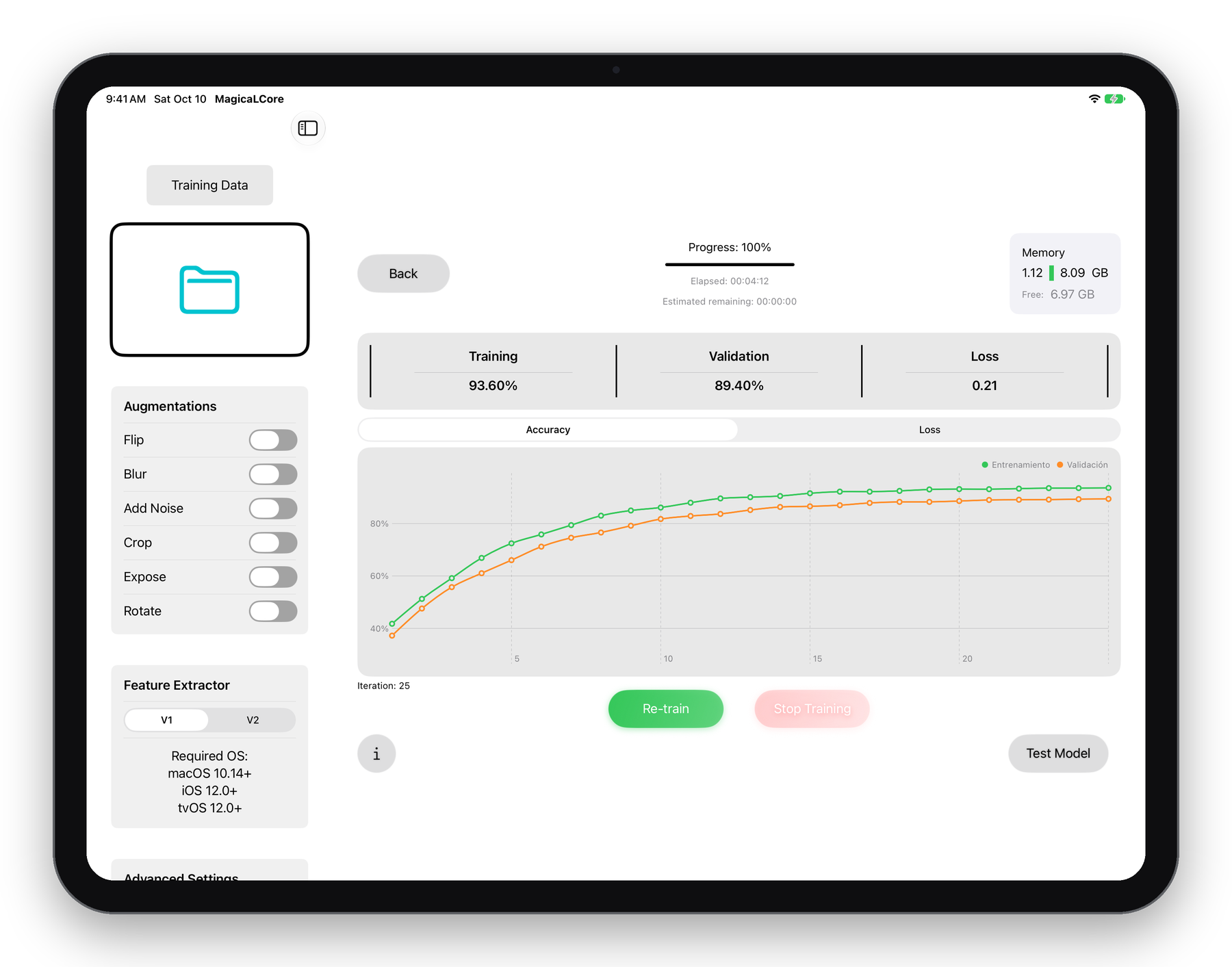
MagicaLCore training screen on iPad with a finished accuracy chart
100%on-device
0lines of code
.mlmodelexport
7languages

Why MagicaLCore

Machine learning shouldn't need
a lab.

Training a model usually means a Mac, a script and a cloud account. MagicaLCore puts the whole process on the iPad you already carry.

0

lines of code

Folders in, model out. Every setting is a toggle, a slider or a stepper — with an explanation one tap away.

100%

local training

Training runs on your iPad. Your images stay on the device — nothing is uploaded to train a model.

1

file to ship

Export a ready-to-use .mlmodel and drop it into an Xcode or Swift Playgrounds project.

Everything you need

From photos to a model.

Everything you need to build, check and ship an image classifier — in one app.

Import your images

Pick one folder with a subfolder per class. MagicaLCore reads the labels from the folder names.

Visual model editor

Name your project, add author and description, and set up training from a visual panel.

Local training

Your model trains on the iPad itself. No upload, no queue, no cloud account.

Advanced controls

Iterations, learning rate, dropout, early stopping tolerance and iterations without improvement — each with an explanation.

Statistics & metrics

Training and validation accuracy, loss, progress and memory, with live accuracy and loss charts.

Live camera test

Point the camera at something and see what your model predicts, in real time.

Batch test

Import a folder of new images and check the predictions one by one.

Export .mlmodel

Save a ready-to-use .mlmodel for Xcode and Swift Playgrounds.

Tutorials

Step-by-step guides inside the app, from your first folder to your first model.

History

Every model you train is kept with its author, date and description — ready to test or export again.

Chapter 01 · Your dataset

One folder.
One class each.

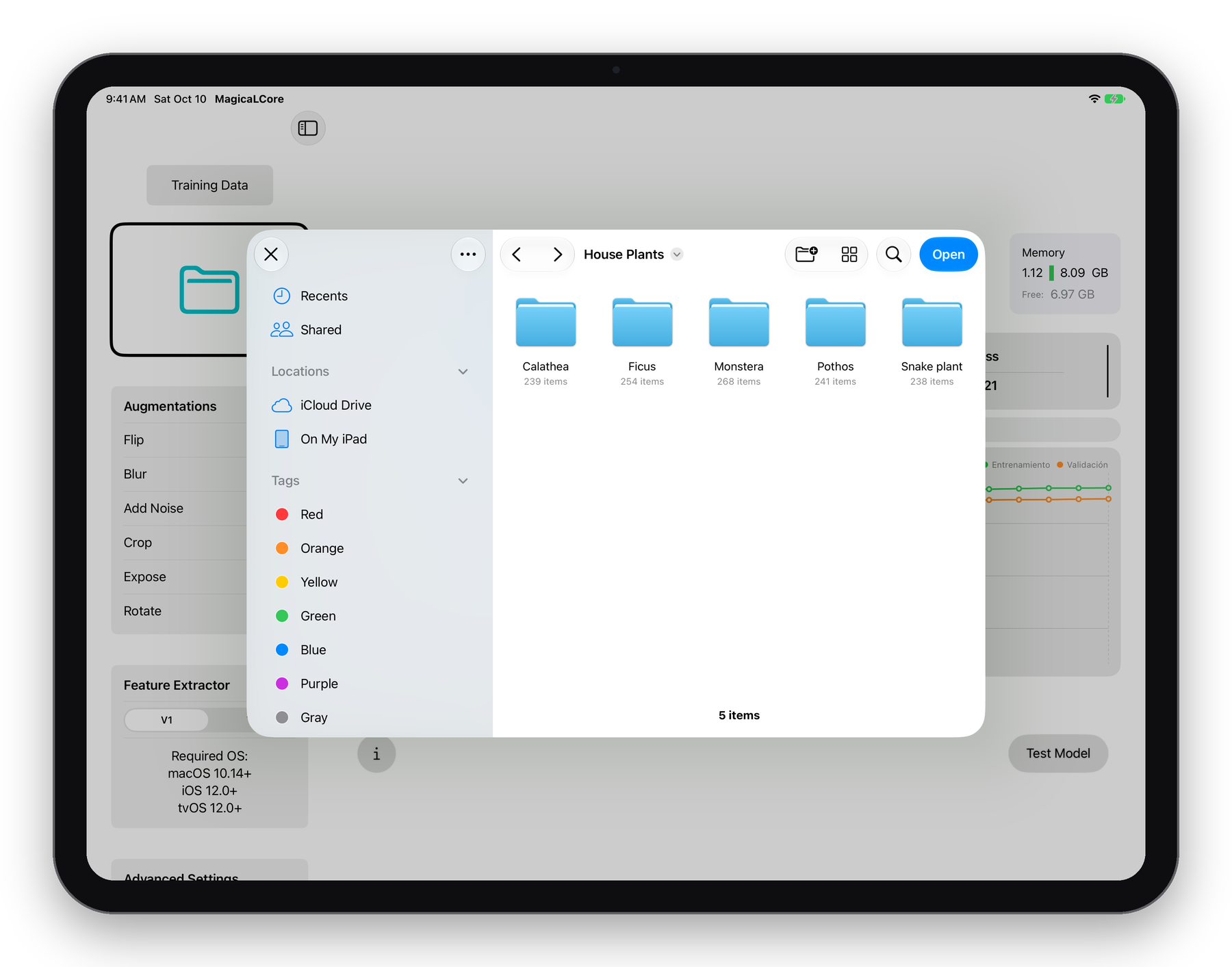
Put your images in one main folder with a subfolder for every class — Monstera, Ficus, Pothos… Import it from Files and MagicaLCore takes the labels from the folder names.
  • JPG and PNG images
  • Import from On My iPad, iCloud Drive or any Files location
  • Up to 2,000 images per training, 10,000 with Pro
Importing a dataset folder with five class folders in MagicaLCore
Chapter 02 · Training controls

Every setting,
explained.

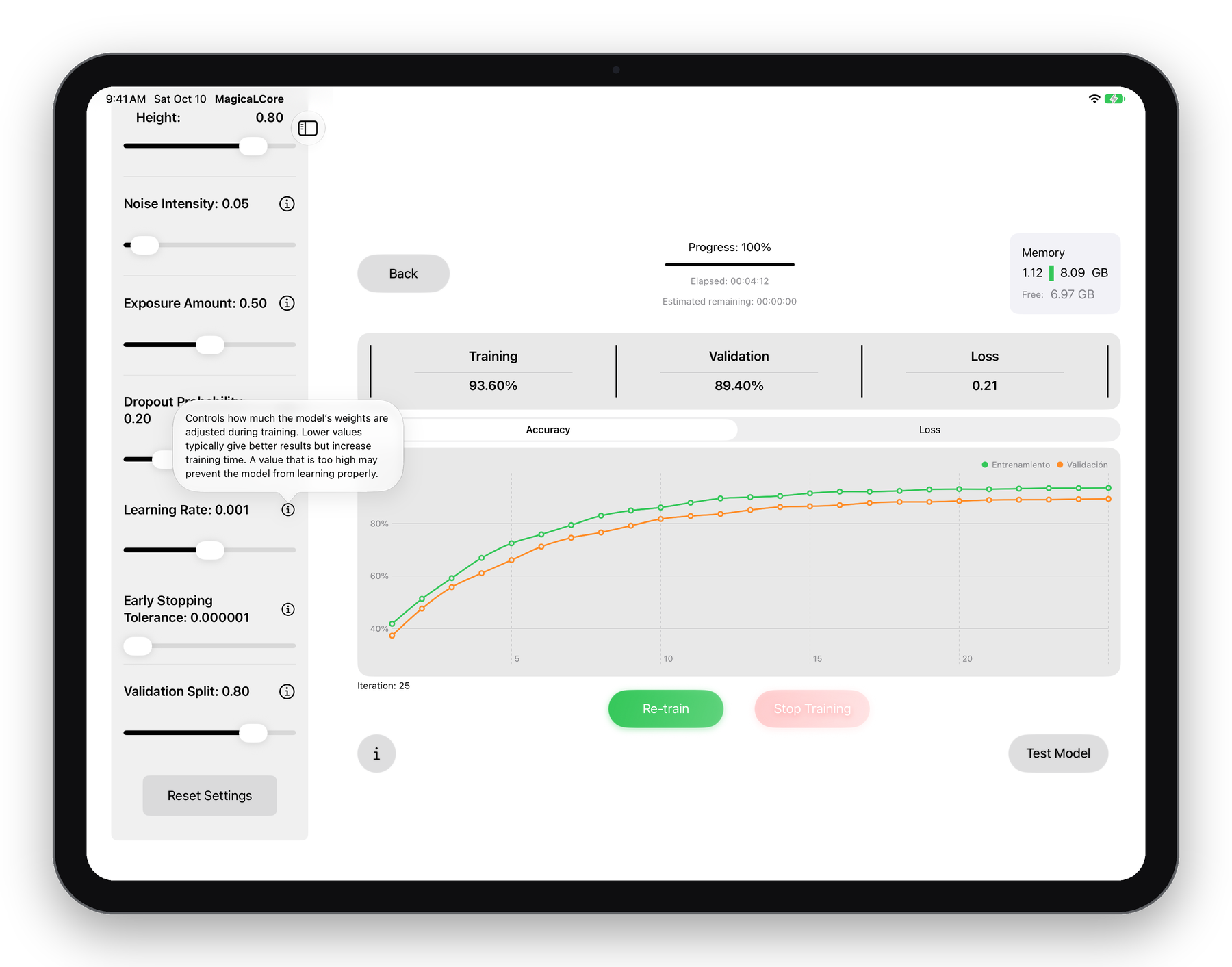
Go with the defaults or fine-tune the training. Tap the info button next to any setting and a short explanation tells you what it does.
  • Iterations, learning rate and dropout
  • Early stopping tolerance and iterations without improvement
  • Validation split to keep part of your images for checking
Advanced training settings with an explanation popover in MagicaLCore
Chapter 03 · Statistics & metrics

Watch your model
learn.

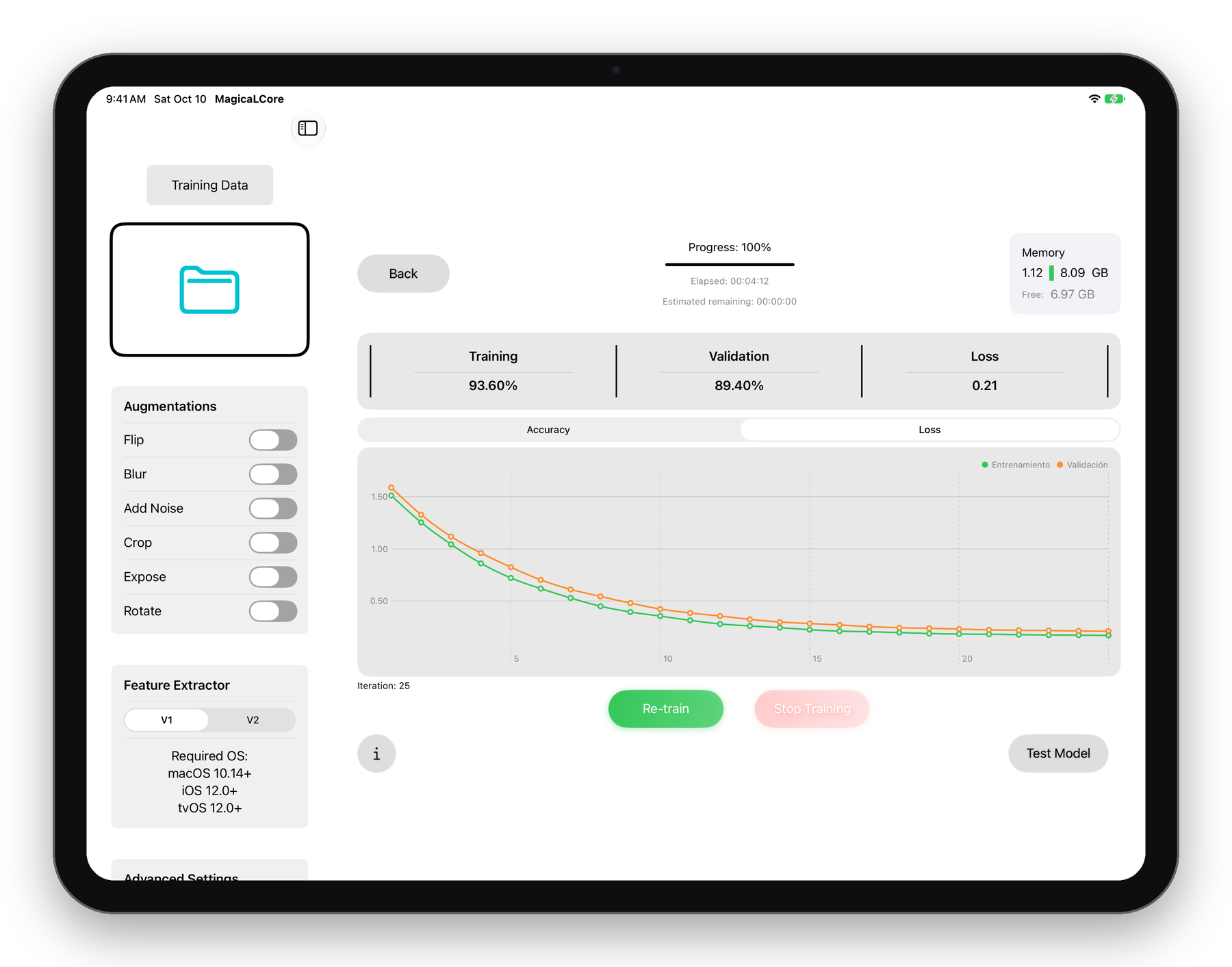
Follow the training as it happens. Accuracy and loss for training and validation, iteration by iteration, with elapsed and remaining time.
  • Accuracy and loss charts for training and validation
  • Final training accuracy, validation accuracy and loss at a glance
  • Progress, time and memory while it trains
Loss chart and training metrics in MagicaLCore
Chapter 04 · Test your model

Try it before
you ship it.

Check your model straight away. Import a folder of new images and tap through the predictions, or switch to the camera and test it live.
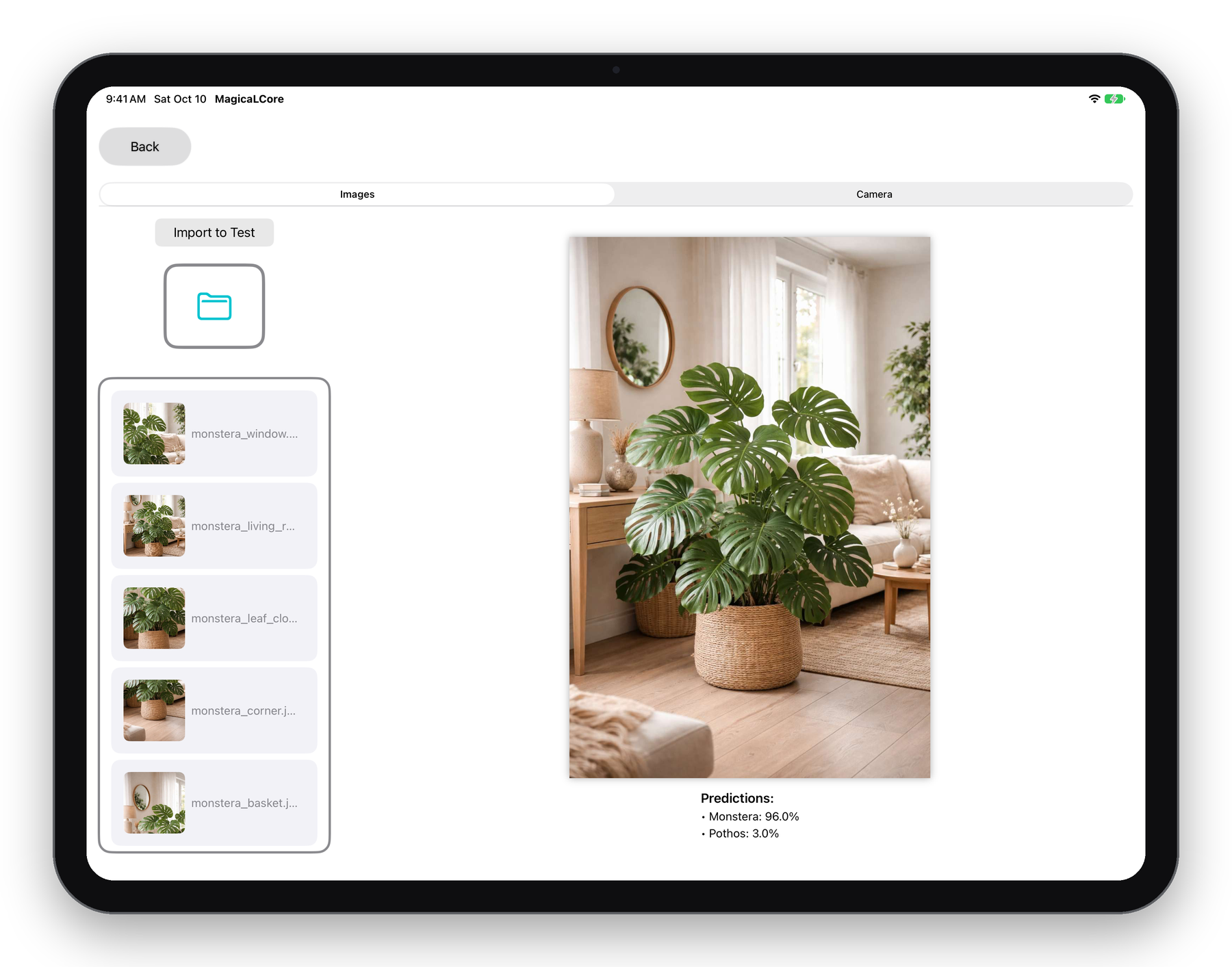
  • Batch test with imported images
  • Live camera with real-time predictions
  • Top predictions with their confidence
Testing a model with an image: Monstera 96%, Pothos 3%
Chapter 05 · History

Every model,
kept in one place.

Each model you train is saved to your History with its author, date and description. Swipe to test it again, export it or delete it.
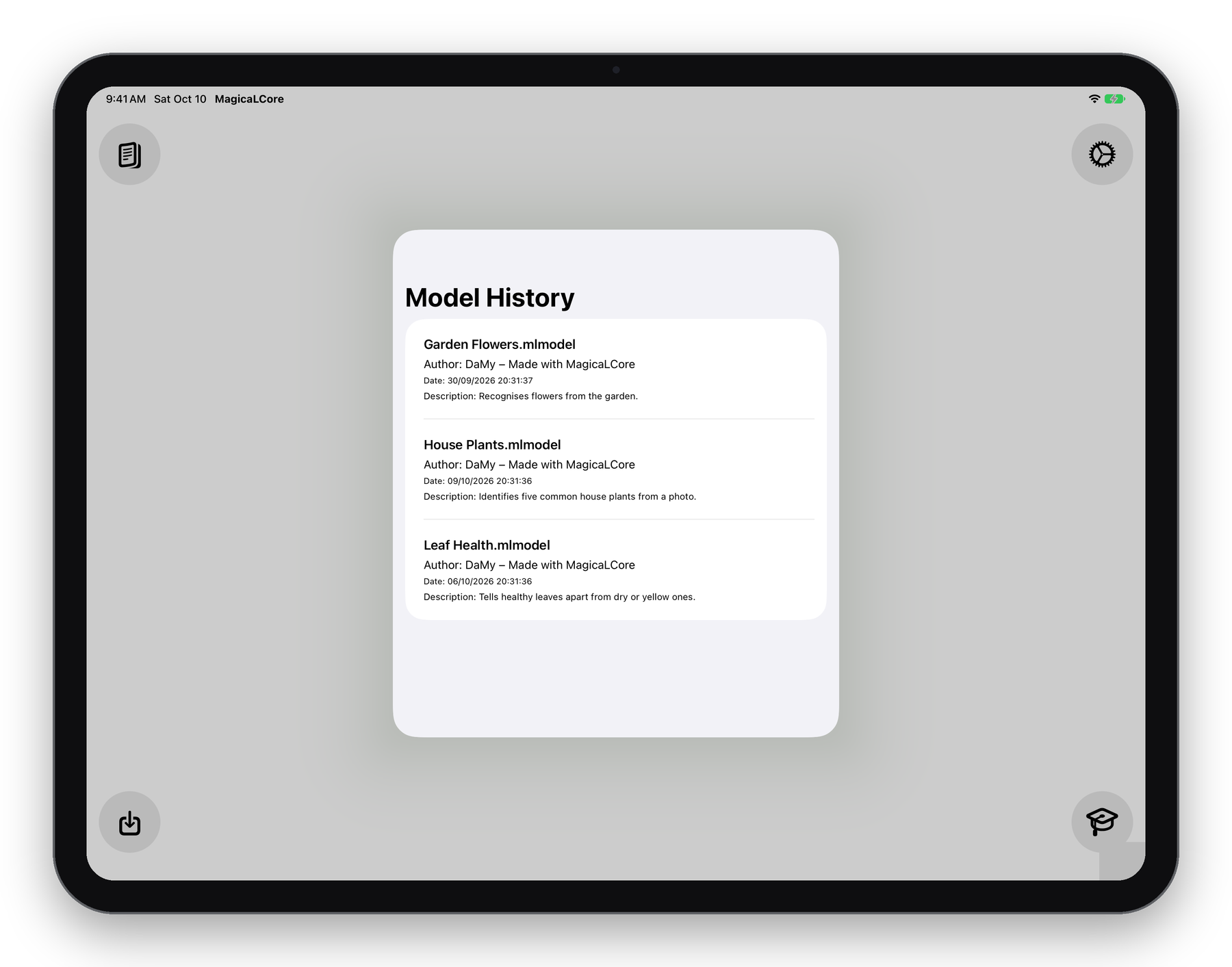
  • Author, creation date and description for each model
  • Test, export or delete with a swipe
  • Import an existing .mlmodel to test it in the app
Model History in MagicaLCore with three trained models
Chapter 06 · Export
✦ Ready for Xcode

A real model.
Ready to use.

MagicaLCore exports a ready-to-use .mlmodel. Save it to Files and add it to your app in Xcode or Swift Playgrounds.
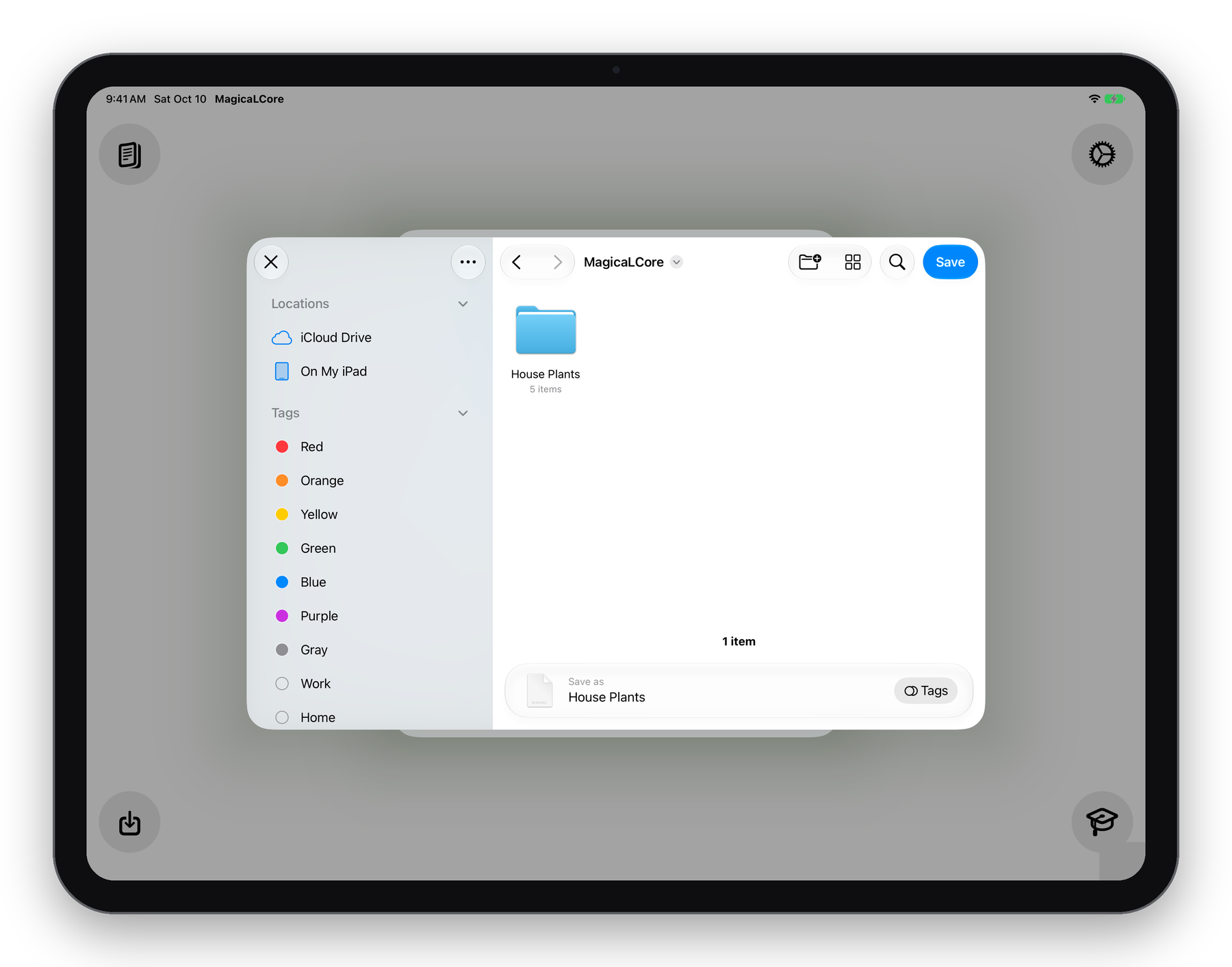
  • Standard .mlmodel file
  • Your project name, author and description travel with the model
  • Save anywhere in Files
Exporting House Plants.mlmodel to Files
Chapter 07 · Tutorials

Learn it
from scratch.

New to machine learning? The built-in tutorials walk you through the app step by step — how to organise your images, train, test and find your models in the History.
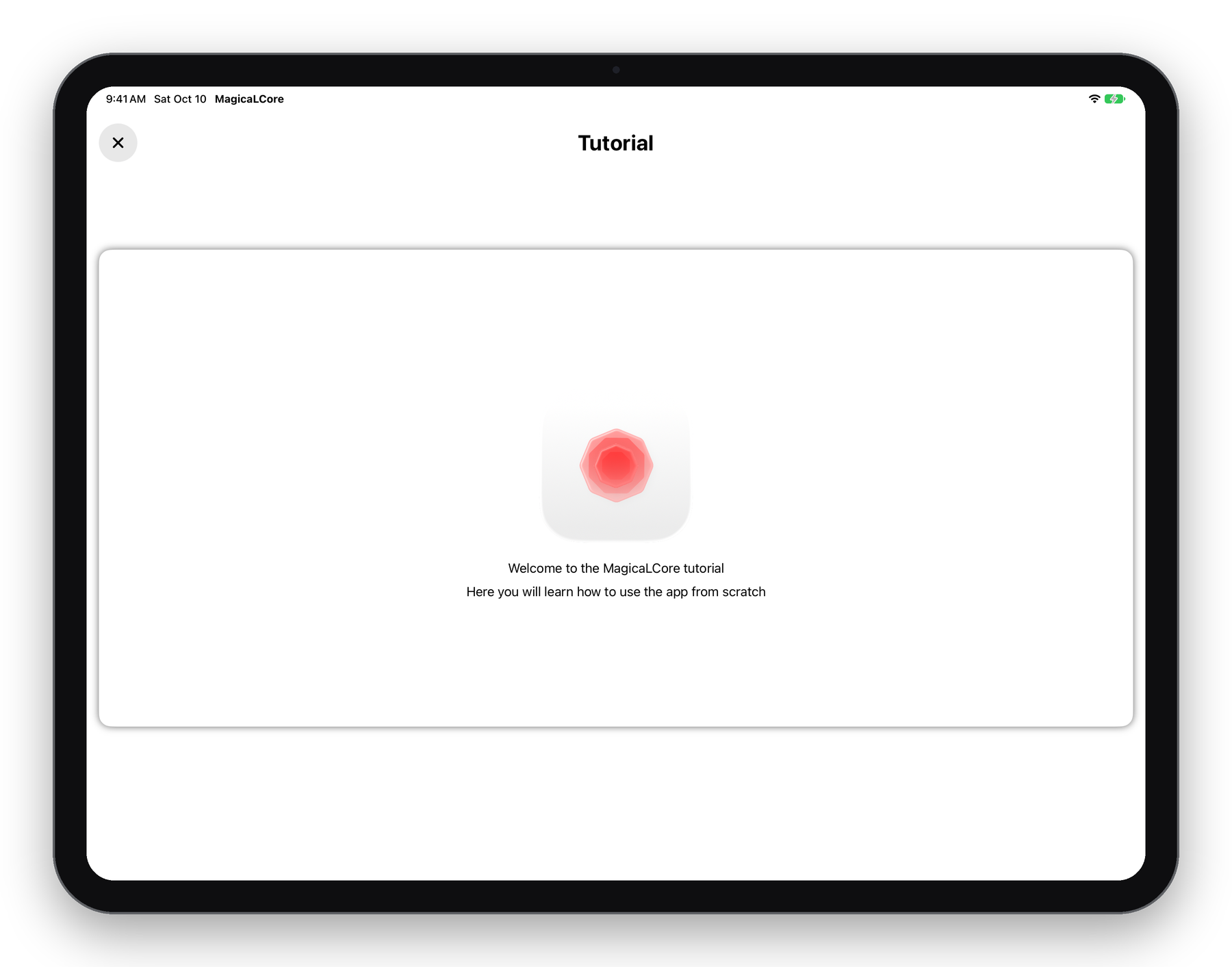
  • Guided tour of every screen
  • How to organise your training folders
  • Always one tap away from the home screen
MagicaLCore tutorial screen

The app

Built for iPad.
Native from the ground up.

Designed and built natively for iPadOS. No web views, no cross-platform shortcuts — just your images, your iPad and your model.
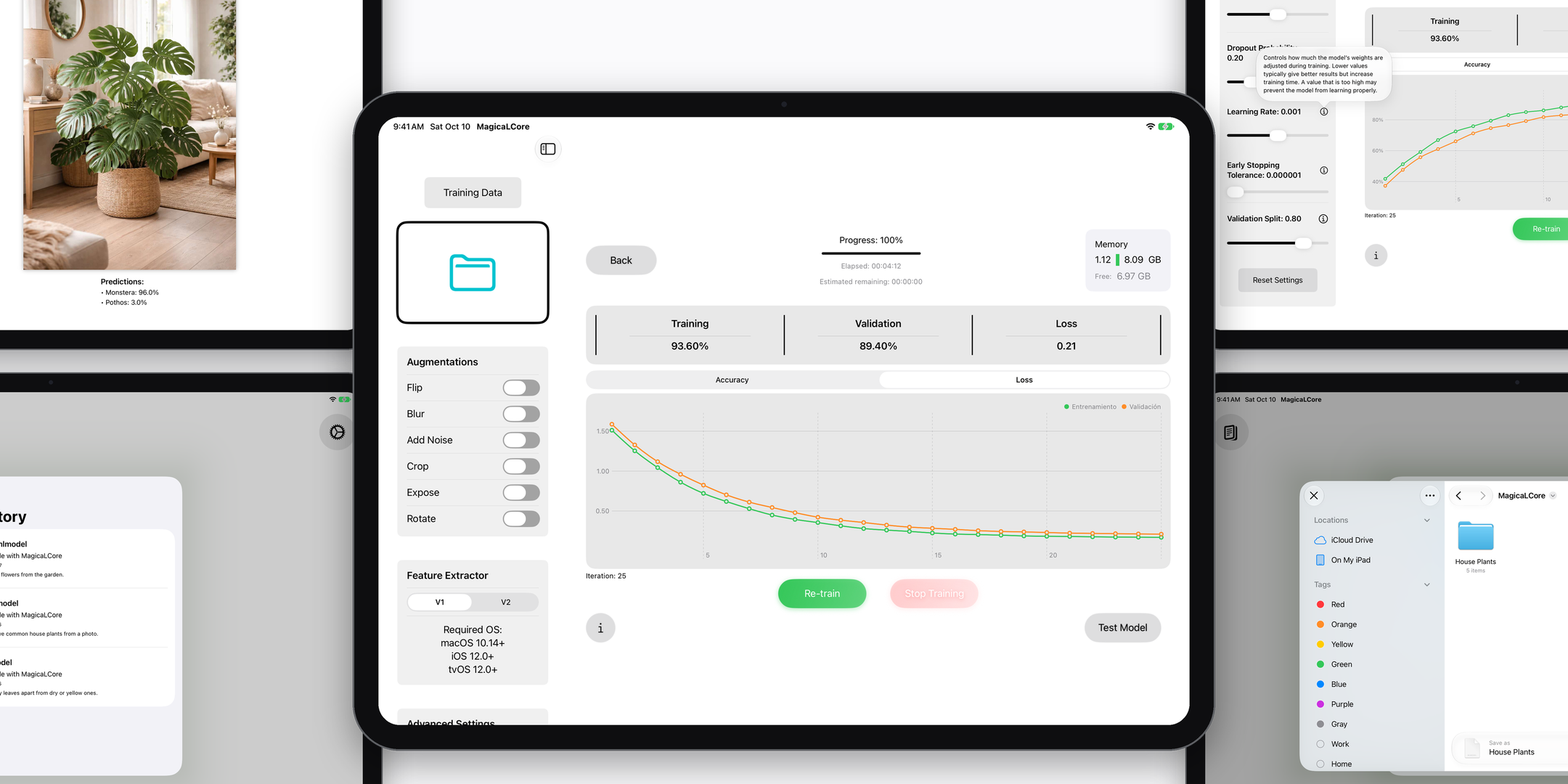
MagicaLCore screens: training, testing, history and export

On your iPad

Your images
stay on your iPad.

Training happens locally, on the iPad in your hands. Your images stay on the device and are never uploaded to train. The models you save live in the app and, if you use iCloud, sync only through your own iCloud account.

Local training Images stay on device No cloud account .mlmodel export No code
Download on theApp Store
MagicaLCore model test on iPad

Pricing

Free to start.
Pro when you need more.

MagicaLCore is free with ads. Pro removes the ads and unlocks the advanced training settings and larger datasets.

4,99 €

per month

MagicaLCore Pro, billed monthly. Cancel any time from your App Store settings.

39,99 €

per year

MagicaLCore Pro, billed once a year.

199,99 €

lifetime

Pay once and keep Pro for good. No subscription.

Q&A

Common questions.

Yes. MagicaLCore trains image classification models directly on your iPad. You import your images, choose your settings and press Start Training — the whole training runs on the device, without sending your images anywhere.
No. Everything is done with folders, toggles and sliders. Each advanced setting has an info button with a short explanation, and the built-in tutorials guide you through the whole process.
Create one main folder and, inside it, one subfolder per class, named after that class (for example "Monstera", "Ficus", "Pothos"). Put the JPG or PNG images of each class in its subfolder. Try to use a similar number of varied images per class. The free version trains with up to 2,000 images; Pro raises the limit to 10,000.
MagicaLCore exports a ready-to-use .mlmodel file. Save it to Files and add it to an app project in Xcode or Swift Playgrounds to recognise images in your own apps. You can also keep it in the History and test it again in MagicaLCore at any time.
MagicaLCore requires iPadOS 18 or later and an iPad with an M-series chip, or an A16 chip or later.
Pro removes the ads, unlocks the advanced training settings, raises the limit to 10,000 images per training, and lets you test and export models from the History without watching an ad. Pro is available at 4,99 €/month, 39,99 €/year or 199,99 € as a one-time lifetime purchase.

Free on iPad

Train your first model today.

A folder of images is all you need. No code, no cloud — just your iPad.

Download on theApp Store