MagicaLCore
 MagicaLCore
 EDU


Blog · Guide
How to train a machine learning model on iPad, with no Mac and no code
A practical guide: pick a model type, collect good examples, train, test and export a .mlmodel. Everything on the iPad, and your examples are never uploaded.
By MagicaLCore ·

Training your own model used to mean a computer, special tools and a lot of setup. With an iPad that has an M1 chip or later, MagicaLCore puts the whole process in one app: you bring examples, you train, you test and you export a model you can use in your own app.
This guide walks through it from start to finish, with the habits that make the difference between a model that works in a demo and one that works in real life.
1. Pick the right kind of model
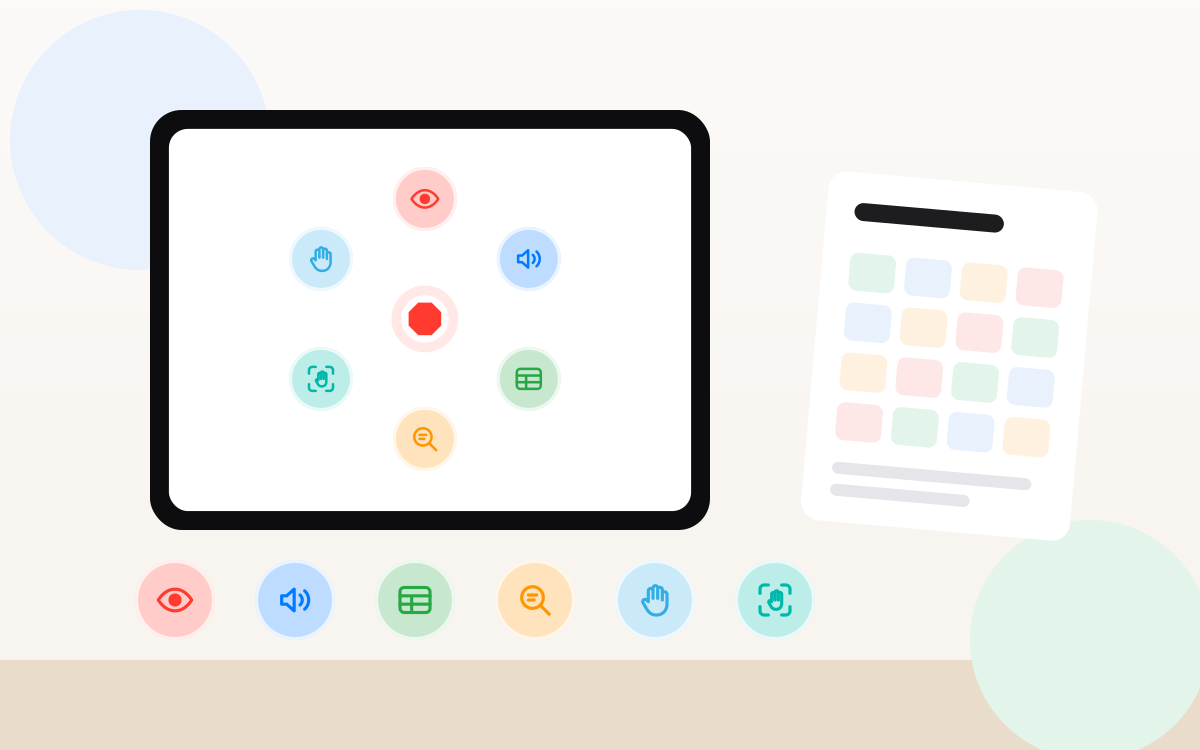
Start from the question you want the model to answer. MagicaLCore trains six kinds of models:
| Model | It answers | Example |
|---|---|---|
| Image | What is in this photo? | Ripe or unripe fruit, types of leaves |
| Sound | What is this sound? | Bird calls, instruments, a knock on the door |
| Tabular data | Which category, or which number, from these columns? | Predict a height from hand, foot and arm span |
| Text | What is this text about, or what tone does it have? | Sort messages by topic |
| Hand pose | Which still hand sign is this? | Rock, paper or scissors |
| Hand action | Which hand movement is in this video? | Short gestures from a video |
If your question fits one of these, the iPad is all you need.
2. Collect good examples
The quality of a model always depends on its data. A few rules that help with every model type:
- One folder per class. The folder name becomes the label:
ripe,unripe. For tabular data, use a CSV file with one column for the value you want to predict. - Variety beats quantity. Photos from different angles, with different light and backgrounds. Sounds recorded in different rooms.
- Keep classes balanced. Similar numbers of examples per class. A model trained with 10 photos of one thing and 1,000 of another learns to guess the big class.
- Collect what the model will see. If your app will use the iPad camera outdoors, train with photos taken with a similar camera, outdoors.
- Keep some examples apart. Examples the model never saw during training are the honest way to test it.
3. Set up the training, with every setting explained
You can train with the default settings and get a useful first model. When you want more control, MagicaLCore shows each setting with an info button that explains what it does in plain words. You learn the vocabulary of machine learning while you use it, instead of guessing.
4. Watch it learn
While it trains, MagicaLCore draws accuracy and loss for the training and validation data, iteration by iteration. Two things to look for:
- Both accuracies go up together: the model is learning things that also work on examples it has not memorised.
- Training accuracy keeps rising while validation stalls: the model is memorising. More varied examples usually help more than more iterations.
Long training and a short lesson or a busy day? Pause it and carry on later from History, right where you left off.
5. Test it like a user would
Numbers are a start, but the real test is trying the model on new examples. MagicaLCore lets you test with your own photos, audio files, a row of data or a sentence, or live with the camera and the microphone. Try the cases that are hard: bad light, background noise, an unusual angle. Each mistake tells you which examples to add next.
6. Export a real .mlmodel
When you are happy with it, export a .mlmodel file with its name, author and description. It is the standard format that Xcode and Swift Playgrounds understand, so you can put it inside an iPhone or iPad app. The Use your model guide in MagicaLCore shows the code for every model type.
Why on the iPad?
- No Mac needed. Train, test and export on the same device. With Swift Playgrounds you can even build the app there.
- Private by design. Training, testing and exporting all happen on the iPad. Your datasets are never uploaded to train a model.
- It goes where you go. A field trip, a garden, a classroom: you can collect examples and train in the same place.
Quick checklist: one folder per class, varied and balanced examples, some kept apart for testing, test the hard cases, then export.
Information about other apps and services was checked on the date of the article and may change. All product names belong to their owners.